How it works

Eventvoi reads, sorts and counts. A person on your team decides.

1. Bookings come in by themselves

Your organization has one booking address. Forward your shop's booking and payment emails to it, or add it as a recipient of the shop's “new order” email. Each one lands in the Inbox.

No emails from your shop? Paste a list of people, or import a CSV or Excel export. Import tells you per row what will happen before anything is saved.

2. Read for you, approved by you

Eventvoi reads each email and prepares the change: a new booking, a payment, a cancellation. The results come in three boxes:

  • Ready: one click each, or “Apply all”.
  • One question each: for example “Which room type?”, answered with a button.
  • Needs a closer look: the email is shown beside it for you to check.

Answer a question about a shop product once and Eventvoi remembers it for that event. Emails from senders you have not approved are kept, marked, and never applied without a person.

Nothing is applied by itself unless you switch on “Apply clear emails automatically” for an event. It is off by default, and diet and health details are never applied automatically.

The Workflow page of a sample festival: seven booking emails ready, each with an Approve button and one “Approve all 7”, beside the guest numbers: 70 booked, 65 confirmed, 1 held, 2 on the waitlist.

3. The daily work in one place

  • To do counts what waits for you: emails, bookings to confirm, items waiting for the Organizer's OK.
  • Everything about a guest on one page: booking, payments, room, notes, documents and history. It saves itself.
  • Payments: record one with the amount filled in, keep a payment plan with due dates, and see who owes money after the due date. Check everything against your shop's export.
  • Undo after the everyday actions: applying an email, confirming, a payment, a room move, a check-in.
One guest’s page: the booking, the payment made, what is still owed with a Record payment button, the room and the diet note.

4. Rooms

Make complex rooming lists simple. Each event has its own room types and counts: paste the list, or read it from a screenshot. On Rooms, tap a person, then a free bed. “Suggest placement” proposes a plan and keeps men and women apart by default. Exports give the venue or hotel its rooming list, extra nights included, and the food list.

Rooms: the people who still need a bed on the left, and each room with its beds and the names in them.

5. Guests

Optional guest page to manage consent, information about food, allergies, arrivals and more. It is private, with no login: a short summary of their booking, their arrival pass, and what they still need to do (documents to sign, arrival time, phone, emergency contact, diet).

Eventvoi emails guests only practical things: the arrival pass with a calendar file and map link, reminders to sign documents, a copy of what they signed, and the messages your team writes. Booking confirmations, receipts and invoices stay with your shop. Replies go to your own team's address.

6. Check-in at arrival

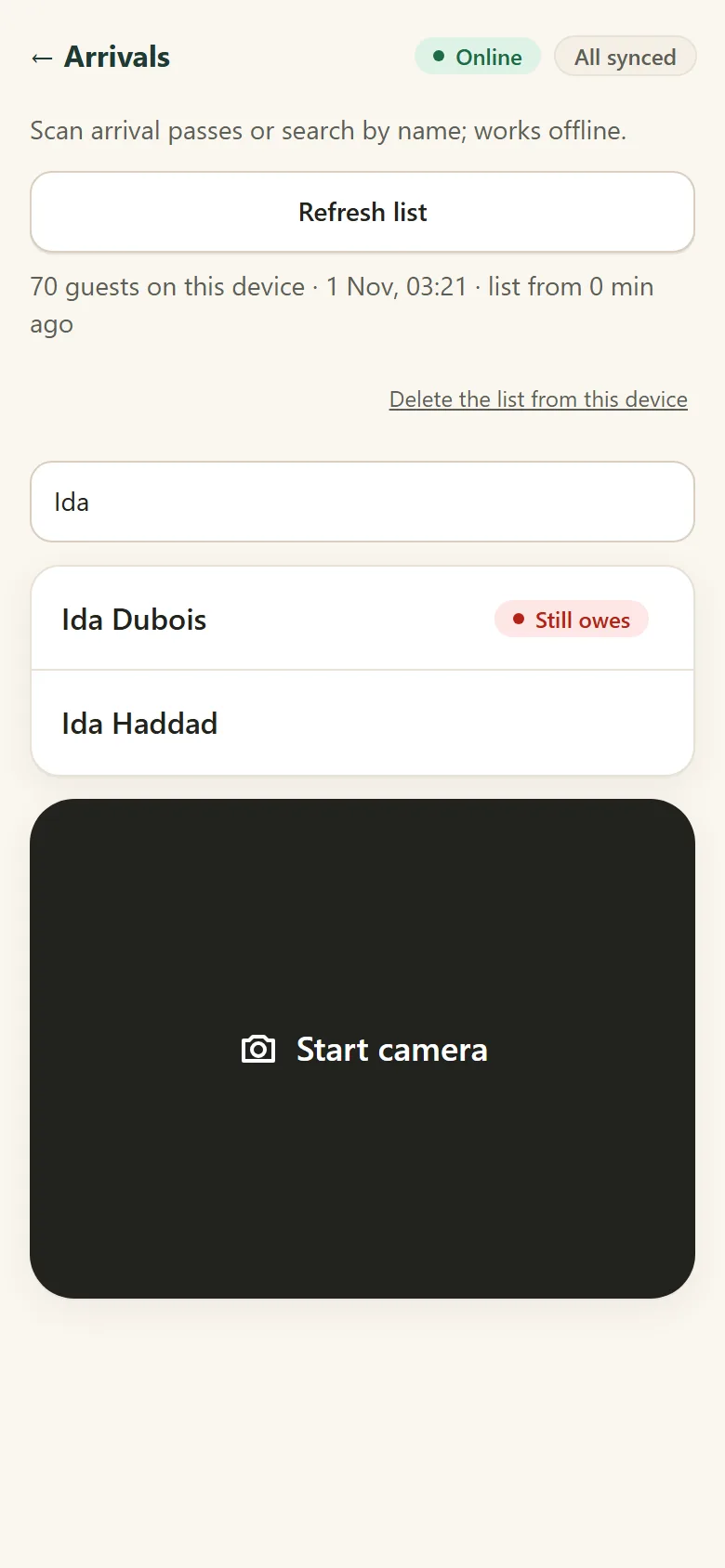
Easy, quick check-in with QR code scanning: scan the arrival pass with a phone, or type a name and press Enter. Green means go in; red says why. If money is still owed, record it at the door or check the guest in as “still owes”.

The gate scanner keeps working offline once the guest list is downloaded.

The door list on a phone: a name typed into the search shows the guest, marked “Still owes”. The page says it works offline.

On arrival day, on a bigger screen

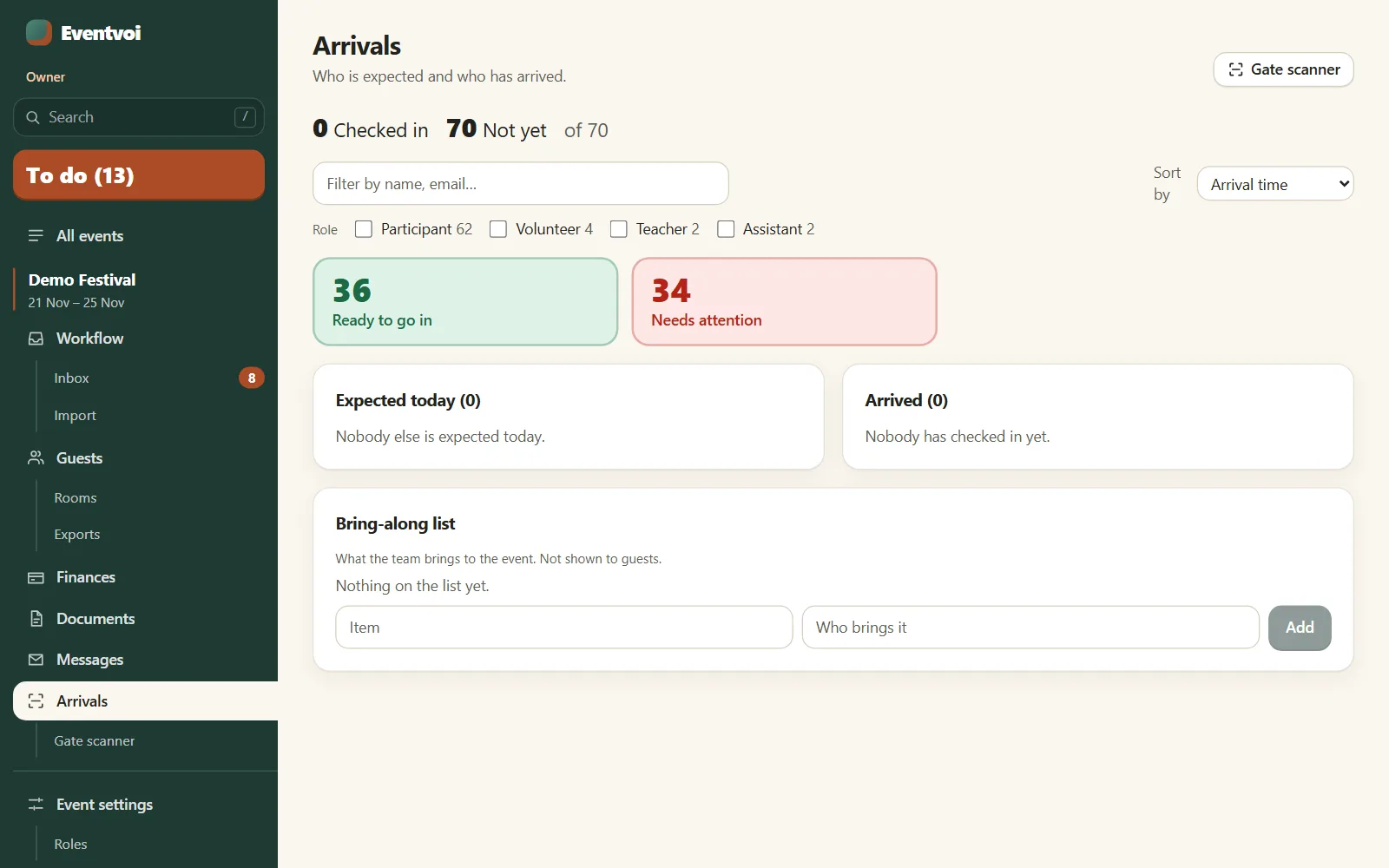
Arrivals shows who is ready to go in, who needs attention, who is expected today and who has arrived.

Arrivals: 36 guests ready to go in and 34 who need attention, with who is expected today and who has arrived.

See it with a sample festival

No sign-up: your own private copy of a sample festival with about 75 guests, deleted after 24 hours. Nothing is sent from it.

No subscription fees. No limit on team members. An easy payment plan: per event and participant. No events, no participants, no cost.

1.50 USD per paying participant per event: the founding price until the end of 2026.